

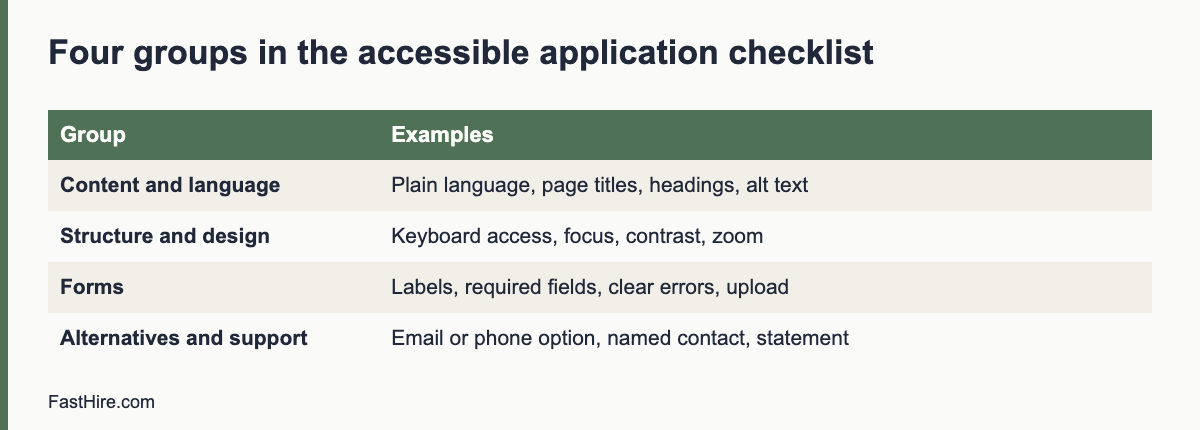
An accessible job application can be completed by people who use a keyboard only, a screen reader, magnification, voice control or extra time, and by people who find long or unclear forms hard. Test your careers page and form against 25 checks in four groups: content, structure, forms, and alternatives. Start with the free checks from the W3C.
Key takeaways
- Accessibility is part of fair hiring. A form that people cannot complete excludes them before any assessment starts.
- Use the W3C Web Content Accessibility Guidelines (WCAG) as your technical reference. WCAG 2.2 is the latest version listed by the W3C.
- Test with a keyboard, a zoomed screen and a screen reader. Automated tools find only part of the problems.
- Always offer another way to apply, such as email or phone, and say how to ask for help.
- Ask your applicant system vendor for its accessibility statement or test report.
Why accessibility belongs in hiring
Your application page is the first step in the process. If a candidate who uses a screen reader cannot submit the form, you will never read their CV, and you may never know that you lost them. Barriers also affect many people who are not disabled: someone on a phone with a small screen, someone with a slow connection, someone who reads in a second language or someone in a hurry.
Legal duties differ by place, and they are changing. In the US, the ADA applies to the application process, and the Equal Employment Opportunity Commission covers it in its guidance on reasonable accommodation. In Great Britain, the Equality Act 2010 requires reasonable adjustments in recruitment. In the EU, the Employment Equality Directive applies, and some EU and national accessibility laws cover websites and digital services. See our guides on the ADA and hiring and UK reasonable adjustments in recruitment. This guide is a practical checklist, not a legal audit.
The standard to use
The W3C publishes the Web Content Accessibility Guidelines, known as WCAG. The W3C says that WCAG 2.0, 2.1 and 2.2 exist and encourages the use of the latest version, 2.2. Many laws and public buyers refer to WCAG at a stated level, often AA. Ask your lawyer or procurement team which level applies to you. The W3C also offers a page of easy checks for a first review. It notes that passing these quick checks does not mean a page is fully accessible.
The 25-point checklist
A. Content and language (checks 1 to 6)
- Plain language. Write the advert and the form at a level most adults can read quickly. Short sentences, common words.
- Clear page title. Each page has a title that says where the person is, such as “Apply for Operations Assistant – Step 2 of 4”.
- Headings in order. Use real headings, not bold text, so screen reader users can move around.
- Describe images. Informative images have alt text. Decorative images have empty alt text. Do not put job requirements only in an image.
- Link text makes sense alone. Use “Read the privacy notice”, not “Click here”.
- State the language of the page, and mark changes of language.
B. Structure and design (checks 7 to 13)
- Keyboard access. Everything works without a mouse: links, buttons, menus, form fields and upload buttons.
- Visible focus. A clear outline shows where the keyboard cursor is.
- Logical order. The tab order follows the visual order.
- Colour contrast. Text and controls stand out from the background. Check with a contrast tool, and do not use colour as the only signal, for example for errors.
- Zoom and reflow. The page remains usable when text is enlarged to 200 percent, and on a small screen, without sideways scrolling.
- No time traps. If the session times out, warn the user and allow an extension. Save progress where possible.
- No flashing or auto-moving content that cannot be paused.
C. Forms (checks 14 to 20)
- Labels for every field. A visible label is linked to its field, not just a hint inside the box.
- Mark required fields in text, not only in colour.
- Helpful errors. Say which field has a problem and how to fix it. Place the message next to the field and at the top.
- Group related fields (such as an address or a set of options) with clear group labels.
- Do not demand too much. Ask only for what you need to assess the application. Offer to accept a CV without re-typing it into 15 fields.
- Accessible upload. The file upload works with a keyboard and a screen reader, and accepts common file types.
- Accessible CAPTCHAs. Avoid image puzzles. Use an alternative that does not block people. Ask your vendor about options.
D. Alternatives and support (checks 21 to 25)
- Another way to apply. Offer email, phone or a paper option, and put it next to the form.
- A named contact for help, with a reply time.
- Accessible documents. Job descriptions and notices are available as accessible web pages or tagged PDFs.
- Accessible video and audio. Captions for speech and a transcript. Audio description where visuals carry information.
- An accessibility statement. Say what you tested, known problems and how to report a barrier.
How to test, in an hour
| Test | How | What you learn |
|---|---|---|
| Keyboard-only | Put the mouse away. Use Tab, Shift+Tab, Enter and Space to complete the whole application | Missing focus, traps, unreachable controls |
| Zoom | Zoom the browser to 200 percent and then 400 percent | Overlaps, hidden buttons, sideways scrolling |
| Screen reader | Use a free screen reader (NVDA on Windows, VoiceOver on Mac and iPhone, TalkBack on Android) for the first two pages | Unlabelled fields, bad reading order, missing alt text |
| Colour and contrast | Use a contrast checker on text, buttons and error messages | Low contrast and colour-only signals |
| Phone | Complete the form on a mid-range phone on a mobile connection | Slow pages, tiny controls, awkward uploads |
| Real people | Ask two or three people who use assistive technology to try it, and pay them for their time | Problems that automated tools miss |
Automated tools help, but they find only a share of problems. Use them for a first pass, and then test with people. Record what you find, give each issue an owner and a date, and retest after the fix.
Working with your software vendor
Most employers use a vendor for the application form. You are still responsible for the experience. Ask for the vendor’s accessibility statement, the standard it follows and a recent test report. Ask how they handle bug reports and how fast they fix them. Test your own configuration, because custom fields, embedded questions and added scripts can create new barriers. Our guide on choosing recruiting software includes accessibility among the points to cover.
Make the process better for everyone
- Shorter forms. Fewer fields means fewer chances to fail.
- Save and return. Let people leave and finish later.
- A progress indicator. “Step 2 of 4” reduces stress.
- Confirmation that is clear. Tell people their application was received, and what happens next.
- A way to give feedback. Add a short link: “Tell us if anything on this page was hard to use.”
These changes help people with disabilities most, but they also help almost everyone. A form that is easy to complete increases the number of qualified people who finish it.
FastHire is coming soon, and we are building it with accessibility in mind. It shows each job requirement next to the exact CV passage that supports it. It does not rank, score or reject candidates. People make every decision. Whatever tools you use, test the application experience yourself.
Plain language: before and after
| Before | After |
|---|---|
| Candidates must possess demonstrable proficiency in the utilisation of enterprise resource planning systems. | You have used a system for orders and stock, such as an ERP system. |
| Please be advised that incomplete submissions will not be considered. | We can only read applications that are complete. Please fill in every field marked “required”. |
| Applicants should endeavour to submit their documentation prior to the closing date. | Please send your CV by 17:00 on [date]. |
| Successful candidates will be contacted forthwith. | We will write to everyone by [date]. |
Plain language does not mean simple ideas. It means clear sentences that more people can read the first time. Test your text with a colleague outside the team. If they must read a sentence twice, rewrite it.
An issue log for your application page
| Issue | Page or step | Who it affects | Severity | Owner | Fix by | Retested |
|---|---|---|---|---|---|---|
| Upload button cannot be reached by keyboard (fictional) | Step 3 | Keyboard and screen reader users | High | Web lead | Date | Yes / No |
| Error message in red only (fictional) | Step 2 | People with colour vision differences | Medium | Vendor | Date | Yes / No |
| Session ends after 10 minutes with no warning (fictional) | All steps | People who need more time | High | Vendor | Date | Yes / No |
The rows are invented to show the format. Rank issues by how much they block a person from finishing. A blocked upload ranks above a spelling error. Review the log at a monthly meeting until the high-severity items are closed.
What to say in your accessibility statement
A short statement builds trust and tells people what to do if they hit a barrier. Include the following points in plain words.
- What you tested, which standard you aimed for and the date of the last review.
- Known problems and when you plan to fix them.
- How to apply another way: an email address and a phone number.
- How to report a barrier, and how fast you will reply.
- The name or role of the person responsible.
Be honest. A statement that lists real gaps and clear plans is better received than a claim that everything is perfect. Update it after each review.
A quarterly routine
Put a recurring task in the calendar. Each quarter, one person completes the application on a phone and on a desktop, using the keyboard only. They also run an automated scan, check the issue log and read any feedback received. They record the result in two lines. Every year, add a test with people who use assistive technology. This is a small amount of work that prevents large problems, and it keeps the form accessible when vendors, templates or questions change.
Costs and priorities
Teams often worry that accessibility is expensive. Many fixes are small: adding labels, changing a colour, adding a visible focus outline, writing clearer error messages and offering an email option. The larger costs usually come from systems that were not chosen with accessibility in mind. That is why the questions belong in procurement, before you sign a contract. If you already have a system with problems, rank the issues by impact, ask the vendor for a dated plan and put the commitment in writing.
Start with the first three steps of the application, since that is where most people leave. Fix the barriers that block completion. Then work on the issues that make completion hard. Last, polish. Measure the share of people who start and finish the form before and after your changes. A rise in completion is a sign that the changes help.
Frequently asked questions
Is an accessible application the same as an accessible interview?
No. The application is the first step. Interviews and tests have their own needs. See our guide on accessible interviews.
Do I need to meet WCAG AA?
It depends on the law that applies to you and on your contracts. WCAG AA is a common target, and it is good practice. Ask a lawyer about your duties.
Can I use an accessibility overlay or plugin to fix my form?
Be careful. Many experts warn that overlays do not fix underlying problems. Fix the page itself, and test with real users.
What if my vendor says its form is accessible?
Ask for evidence: a test report and the standard used. Then test it yourself with your own configuration.
How often should I test?
After every change to the form or the careers page, and at least once a year.
Related guides
- Hiring guides for fair and compliant hiring
- The ADA and hiring: reasonable accommodation for applicants
- UK reasonable adjustments in recruitment
- Candidate experience checklist
- All hiring guides for employers
- How to run an inclusive job ad check
This is general information, not legal advice.